Choosing the right internet connection can make a noticeable difference in your streaming experience. Whether you use a smart TV, streaming box, or another compatible device, a stable network helps reduce buffering, improve playback consistency, and make watching your favorite content more enjoyable. For users exploring Mom IPTV, understanding the differences between wired and wireless connections can help them choose the setup that works best for their home.
Both Ethernet and Wi-Fi offer useful benefits, but they perform differently depending on your internet speed, router placement, home layout, and the number of connected devices. This guide explains how each connection works and how to choose the right option for a better Mom IPTV experience.
What Is a Wired Internet Connection?
A wired connection uses an Ethernet cable to connect your streaming device directly to your router. Instead of transmitting data through wireless signals, the connection carries network data through a physical cable.
For many home entertainment setups, Ethernet is a reliable choice because it provides a consistent connection with less interference from walls, neighboring networks, and other wireless devices.
Benefits of Using Ethernet for Mom IPTV
More consistent connectivity: A direct cable connection can help maintain stable communication between your device and the router, particularly when Wi-Fi signals are weak.
Reduced wireless interference: Ethernet is not affected by competing Wi-Fi networks or common sources of wireless interference.
Lower and more consistent latency: Wired connections often provide lower latency, which can be helpful when navigating streaming menus or using interactive features.
Reliable high-quality streaming: A stable connection can make it easier to maintain HD or 4K playback when your internet service and streaming source support those resolutions.
For users who watch content on a television in the same room as their router, an Ethernet connection can be a practical option for improving network reliability.
What Is a Wi-Fi Connection?
Wi-Fi connects your streaming device to the internet wirelessly through a router. It allows you to access online content without running cables across rooms, making it a convenient choice for many households.
Most modern smart TVs, streaming devices, smartphones, and tablets support Wi-Fi. This flexibility makes wireless connectivity especially useful when entertainment devices are located far from the router.
Benefits of Wi-Fi for Mom IPTV Service
Convenient installation: You can connect compatible devices without running Ethernet cables through your home.
Flexible device placement: Your television or streaming device can be positioned wherever a suitable wireless signal is available.
Support for multiple devices: Wi-Fi allows phones, tablets, computers, and smart TVs to connect to the same home network.
Less visible wiring: A wireless setup keeps your entertainment area neat and organized.
However, Wi-Fi performance depends on signal strength, router quality, interference, and network congestion. If the signal is weak, video playback may become inconsistent even when your internet plan offers high speeds.
Wired vs. Wi-Fi: What Is the Difference?
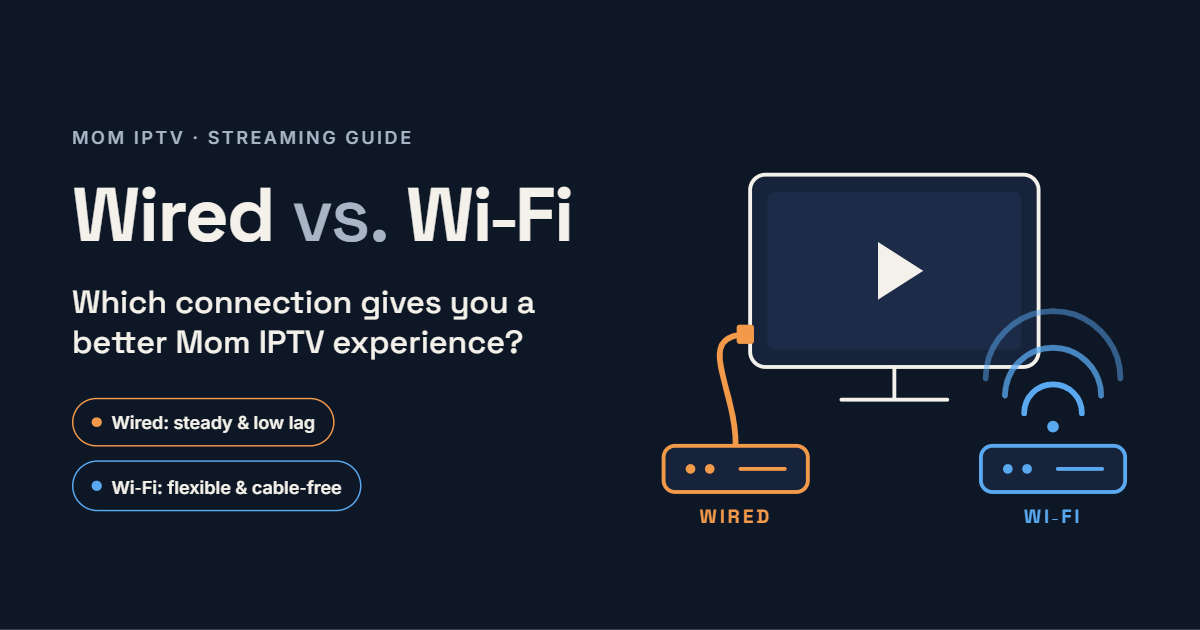
The main difference is how data travels between your streaming device and the router. Ethernet uses a physical cable, while Wi-Fi relies on wireless signals.
Connection Stability
Ethernet generally provides a more consistent connection because it avoids many sources of wireless interference. Wi-Fi can also be reliable, especially when the router is nearby and the signal is strong.
If your Mom TV IPTV experience includes frequent buffering, testing an Ethernet connection can help determine whether wireless network conditions are contributing to the problem.
Streaming Quality
Neither connection automatically guarantees better picture quality. Video resolution and playback depend on the streaming source, available bandwidth, device capabilities, and internet service.
A strong Wi-Fi connection can handle HD and 4K streaming when sufficient bandwidth is available. Ethernet may be preferable when you want to minimize fluctuations in network performance.
Speed and Bandwidth
Modern Wi-Fi standards can deliver very high speeds, sometimes exceeding the capabilities of older Ethernet equipment. In practice, the performance you receive depends on your router, device, distance, and network conditions.
For most households, the important factor is having enough stable bandwidth for the content being watched and other activities taking place on the network.
Installation and Cost
Wi-Fi is usually easier to set up because it does not require additional cables. Ethernet may involve buying a cable or arranging a convenient cable route, but it can provide a dependable long-term connection for stationary devices.
Which Connection Is Better for Mom IPTV?
The best choice depends on your home setup and streaming requirements.
Choose Ethernet if your streaming device is close enough to the router, you want a dependable connection, or your current Wi-Fi connection frequently drops or fluctuates.
Choose Wi-Fi if your device is located in another room, cable installation is inconvenient, or you prefer a simple wireless setup.
For example, a smart TV beside the router may benefit from Ethernet, while a television upstairs may work perfectly well over Wi-Fi if the wireless signal is strong and consistent.
Before changing your setup, test your existing connection. If streaming works smoothly over Wi-Fi, there may be no need to switch to a wired connection.
How to Improve Your Wi-Fi Connection for Mom IPTV
If Ethernet is not practical, several adjustments can help improve your wireless streaming experience.
Place Your Router Strategically
Position your router in a central, elevated location where possible. Avoid hiding it inside cabinets or placing it behind large objects, as these can weaken the wireless signal.
Use the Right Wi-Fi Band
Many modern routers support both 2.4 GHz and 5 GHz Wi-Fi bands. The 2.4 GHz band generally offers better range, while 5 GHz can provide higher speeds over shorter distances. Some newer routers also support 6 GHz.
Choose the band that offers the best combination of speed and signal strength for your streaming device.
Reduce Network Congestion
Downloads, online gaming, video calls, and other streaming devices can compete for available bandwidth. If playback becomes unstable during busy periods, pause unnecessary downloads or consider upgrading your router or internet plan.
Update Your Router Firmware
Router manufacturers release firmware updates to address security issues and improve device performance. Check your router manufacturer’s instructions to see whether an update is available.
Consider a Mesh Wi-Fi System
If your home has multiple floors or areas with weak coverage, a mesh Wi-Fi system can help extend wireless connectivity. Place mesh units according to the manufacturer’s guidance to avoid weak links between them.
Common Streaming Problems and How to Fix Them
Even with a good internet connection, occasional playback problems can occur. Here are some practical troubleshooting steps.
Frequent buffering: Run an internet speed test near your streaming device, restart your router if necessary, and check whether other devices are consuming significant bandwidth.
Video quality drops: Check whether the wireless signal is weak or the network is congested. Moving closer to the router or using Ethernet may help.
Connection keeps disconnecting: Verify that your device has the latest available software and that the router is working correctly. Check cables and ports if you use Ethernet.
Slow loading times: Restart the streaming application and device. If other online services are also slow, the issue may involve your internet connection or service provider.
Problems on multiple devices: Test other devices on the same network. If several devices experience similar issues, investigate your router or internet service rather than assuming the streaming device is responsible.
These steps can help users distinguish between local network problems, device issues, and possible problems with the streaming service itself.
How Much Internet Speed Do You Need?
The bandwidth required depends on video resolution, compression, the streaming platform, and how many devices share your connection. As a general planning guide, many streaming services recommend approximately 5 Mbps for HD video and 15–25 Mbps for 4K video per stream, although requirements vary.
Remember that these figures are general estimates rather than guaranteed requirements for Mom IPTV. Other devices and household activities may require additional bandwidth.
A faster internet plan will not necessarily fix every buffering problem. Weak Wi-Fi coverage, network congestion, device limitations, or issues with the streaming source can also affect playback.
Security Tips for a Safer IPTV Setup
Regardless of whether you choose Ethernet or Wi-Fi, network security should be part of your home entertainment setup.
- Use a strong, unique password for your Wi-Fi network.
- Enable WPA2-AES or WPA3 security when supported by your equipment.
- Keep your router and streaming device software updated.
- Download applications from trusted sources.
- Review subscription terms, privacy practices, and the provider’s authorization to distribute the content it offers.
- Avoid sharing account credentials with unauthorized users.
These precautions can help protect your connected devices and personal information while you enjoy online entertainment.
Final Thoughts
Both wired and wireless connections can deliver a good Mom IPTV experience when configured correctly. Ethernet is often the preferred choice for consistent connectivity and reduced wireless interference, while Wi-Fi offers flexibility and convenient installation.
If your current streaming setup works well, there is no need to change it simply because one connection type is considered more reliable. However, if you experience repeated buffering or connection drops, testing Ethernet or improving your Wi-Fi coverage can help identify a practical solution.
For the best results, combine a suitable connection with adequate internet bandwidth, compatible hardware, updated software, and a reliable streaming source. These factors work together to create a smoother and more enjoyable home entertainment experience.
Frequently Asked Questions
Is Ethernet better than Wi-Fi for Mom IPTV?
Ethernet often provides more consistent connectivity and less interference. However, a strong Wi-Fi connection can also support smooth streaming when sufficient bandwidth is available.
Can Wi-Fi support 4K IPTV streaming?
Yes. Modern Wi-Fi networks can support 4K streaming when the signal is strong, enough bandwidth is available, and the device and streaming source support 4K playback.
Why does Mom IPTV buffer even when my internet is fast?
Buffering can result from weak Wi-Fi signals, network congestion, device performance, application issues, or problems with the streaming source. A speed test alone may not identify the cause.
Should I use a Wi-Fi extender for IPTV?
A Wi-Fi extender may improve coverage in areas with weak signals. A properly configured mesh system or Ethernet connection may be more effective in some homes.
Does Ethernet improve IPTV picture quality?
Ethernet does not automatically increase picture resolution. It can improve connection stability, potentially reducing interruptions or quality fluctuations when network instability is the cause.